
In this post I will share a script I have created to generate a report to display all Intune Configuration Policies that have no current assignments, allowing you to clean up unused policies from your tenant
Table of Contents
Introduction
In this post, I will be sharing a script that I wrote to generate a report that be used to Identify all configuration policies within your Intune environment that have no assignments applied.
As it stands currently several sections in Intune that do not display the Assignment status of the effective policies on a list view making it hard to identify policies that are no longer in use or needed. For larger organisations cleaning up these unused policies can be time-consuming as they would have to check each policy one by one in the GUI to confirm if they are assigned.
This script will help alleviate this problem by listing all policies with no assignments so that you know what is not in use and can be removed from your tenant.
Requirements
This script only requires you to have the MS Graph PowerShell module to run as it utilises the ‘Invoke-MGGraphRequest’ cmdlet to call for the information it requires to generate the report, this does however, this means you will need to have this module installed before running the script for it to work as intended.
The script does have a built-in check for this module to warn you if this is missing, if this is the case you can install this using the following command:
Depending on your account’s permissions you can choose to install this for yourself or all users using the ‘-Scope’ switch, being either ‘-Scope CurrentUser’ or ‘-Scope All’ respectively.
Graph PowerShell utilises Enterprise app permissions in your 365 tenants to determine what you will be able to access and manipulate while connected in the session. While this script will attempt to connect with the required permissions to complete the task at hand (DeviceManagementConfiguration.Read.All), if your account does not already have these permissions you will instead be prompted to accept them upon sign-in.
If your account does not have permission to allow this, you will instead have to send a request to your administrator, who will then have to allow these permissions before you can proceed.
The $ReportPath variable created on ln33 is used to determine where the report will be saved, you will need to adjust this before running to suit your needs. The script will check to ensure the path exists and warn you if it cannot be found, please note you will require Write permissions to the location of your choosing to save the file.
Usage
The script requires very little adjustment to perform the required tasks, just the $ReportPath on ln33 needs to be changed to meet your needs however by default this is set to “C:\Temp”, which can be left as it is as long as the location exists.
While running the script will perform 3 tasks:
- Pull a list of all policy IDs from each of the named URIs
- Cycle through each policy and check its assignments using the ID, assignments that return null will be added to the $Results Array
- Export the $Results array from the checks above to a CSV file in the $ReportPath
The URIs that are listed in the array on ln62 are all of the locations the script will check for policies, this will therefore include all of the following locations:
- Device Compliance Policies (All OSs)
- Configuration Profiles (All OSs, Administrative Templates, Custom Settings, Settings Catalogs)
- Scripts (Remediation and Platform for all OSs)
- Autopilot Deployment Profiles
- Windows Update Policies (Update Rings, Feature, Driver, and Optional Updates)
- All Endpoint Protection policies (AV, Firewall, Encryption, Account protection, etc.)
Applications are not included in the checks for this script as the properties that are available on applications vary drastically from those listed above, they also include global applications which are listed regardless of whether or not you have configured the app or not which will clutter the report with unnecessary information. That being the case I will be creating a separate script for this at a later date.
It is also worth noting that the Applications list in Intune already has a column available to determine if the application has been assigned or not, whereas many Configuration policies do not. Therefore the task of cleaning up applications is made easier in the UI.
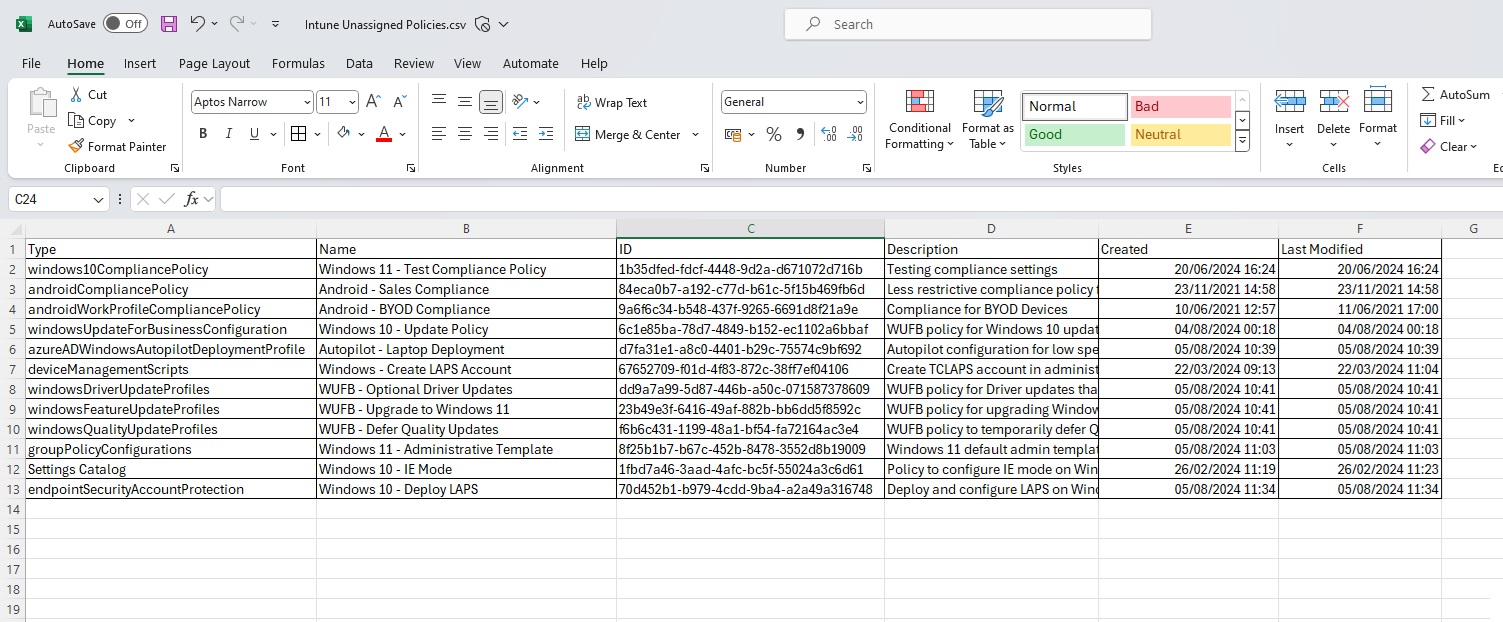
The report will include 5 columns of information for any policy found, which will be as follows:
- Type:
This is the type of policy that has been listed, which gives you an idea of what OS the policy is for and the policy type (for example ‘Windows10CompliancePolicy’ or ‘endpointSecurityAccountProtection’) - Name:
This is the name of the policy that has been listed so that you can identify this from Intune following the report - ID:
This is the ID listed in Graph for the listed policy, included so that you can import this into a Graph request of your own to modify if required - Description:
The description of the policy is included if one was added to the policy. If so it may assist in identifying what the policy was originally intended for making it easier to determine if it is still required - Created:
This is the date the policy was created - Last Modified:
This is the date the policy was last adjusted
The report itself will be saved to the $ReportPath under the name ‘Intune – Unassigned Policies.csv’, you can change the name of the file if desired by changing this on ln125.
As the results are saved as a .csv file and therefore do not come in a formatted table (image below), so if you are planning to hand these results off to another party it would likely be worth a couple of minutes to format a table with the results and save as a .xlsx file so that you can filter and sort efficiently.
You can run this report multiple times without any issues, however, if there is an existing report in the chosen report path with its default name then it will be overwritten. If you still require the previous report consider either renaming this or moving it to another location.
The Script
Some Considerations
The script itself uses the ‘Invoke-MGGraphRequest’ to pull the required information from Microsoft Graph, it is possible to do this using cmdlets from the Microsoft.Graph.Beta.DeviceManagement PowerShell module instead, which can save a fair bit of hassle when it comes to formatting the information.
However, I chose to avoid using this for this report as it requires the Beta Module instead of the original, which means one more large PowerShell module to install and maintain on your device, the Beta module although useful can also be less reliable and consistent than MG Graph Requests. Using MG Graph Requests only requires the base Microsoft.Graph module which is used for a very large variety of tasks and therefore will likely be installed already.
If you do prefer to use the Beta.DeviceManagement module, however, instructions for this can be found in PowerShell Library:
https://www.powershellgallery.com/packages/Microsoft.Graph.Beta.DeviceManagement/2.19.0
While this script’s intention is to highlight policies that are not currently in use of remove them, you should always carefully check the information available to you before removing the policy. Comparing the creation and modified dates is a good way to confirm if the policy in question has not been in use for some time or was recently modified and therefore may have some use yet.
If you are unsure if a policy should be removed or not it is better to check first to ensure nothing is lost while it is still required.
Summary
When working with Intune you are constantly working with configuration policies for a variety of devices and requirements, whether it be creating new policies or adjusting existing ones, these policies will eventually build up into a list of substantial size. This is especially true for larger organisations with a large number of devices.
One thing that can currently be fairly tedious is going back through your Configuration policies and identifying those that are no longer in use or have had their assignments removed by other administrators, as in many of the pages in Intune there is no Assigned column available to show which policies have no assignments (unlike the Apps page that has this by default).
For that reason, I have created a script that utilises MS Graph to identify all configuration policies within your Intune Environment that do not currently have any assignments applied to them. Allowing you to quickly and effectively check and remove those that are no longer required.
Author: Curtis Cannon
My name is Curtis, I am a service engineer for an MSP. My focus is on specialising on Azure/Entra ID and Intune and other related cloud technologies found in the Microsoft 365 Suite. This content has been written from my own knowledge on the subject in question, and any opinions given throughout the post are mine and do not represent the opinion of others.
Related Posts
Sending Organisation Wide Messages in 365 Admin Center
In this post I will cover Organisations message in the 365 Admin Center and how they can be used to streamline notification delivery to end users.
Generate a Device Compliance Report Using PowerShell
In this post I will share a script I have created to generate a report of all managed devices compliance status which will help give you an understanding of which devices need remediating, removing, or have their policies adjusted.
Identify Unassigned Intune Policies with PowerShell
In this post I will share a script I have created to report on all unassigned applications in Intune
